Agents
Agents in the left rail lists every coding agent running in your terminals: Claude Code, Codex, Gemini CLI, Aider, OpenCode and Cursor Agent. It shows which ones are working, which are done, and which are waiting for you, across every tab and server.
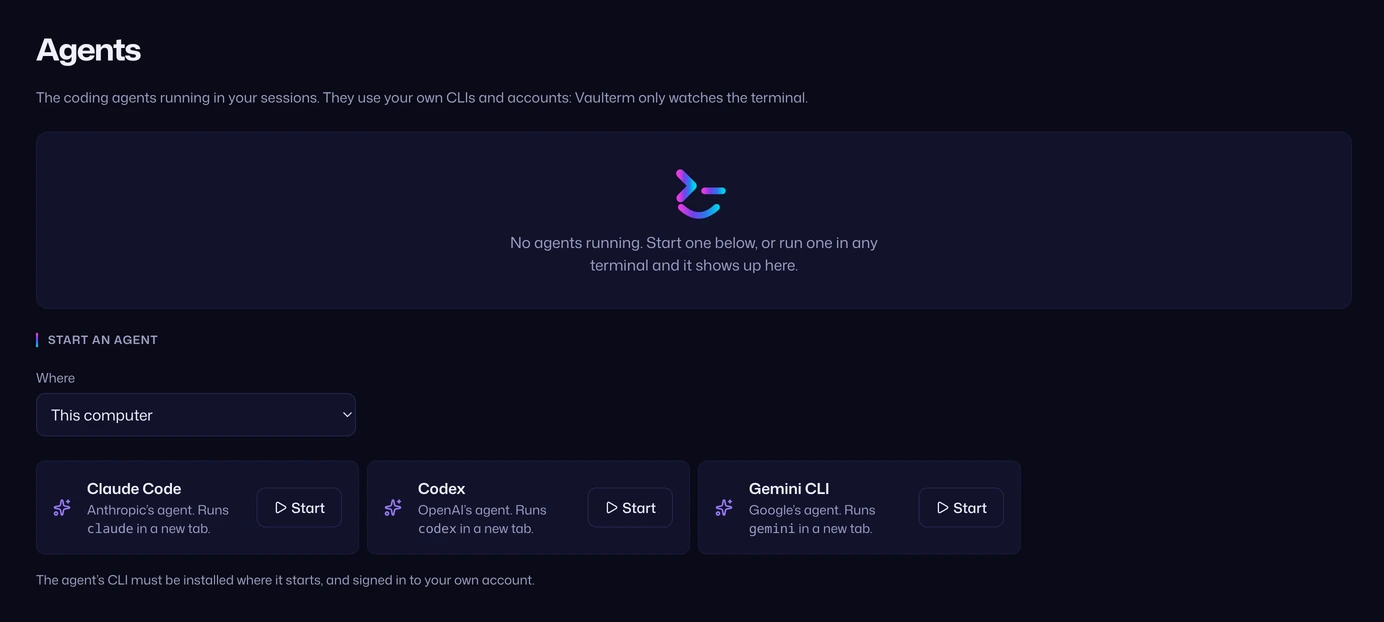
“The coding agents running in your sessions. They use your own CLIs and accounts: Vaulterm only watches the terminal.” Vaulterm doesn’t need an AI subscription of its own, and doesn’t send anything to any AI service.
See your agents
Section titled “See your agents”Say Claude Code is refactoring on web-01 in one tab, and Codex is writing tests on this computer in another. Both show on the Agents page:
| Row | Shows |
|---|---|
| The agent’s name and its state | Needs you, Working, Idle or Ended |
| Where it runs | The pane’s name (the host, or “Local shell”), the folder when known, and how long it’s been in that state: “just now”, “for 4 min”, “for 2 h” |
| Its message | When it needs you and sent a message, the message |
Agents that need you come first, then working ones, then idle ones, then ended ones. Within each, the most recent change comes first.
Press Go to on a row to jump to that pane. It’s the main button on rows that need you.
The page finds agents on its own: start one in any terminal, local or over SSH, and it appears. If none are running, it says “No agents running. Start one below, or run one in any terminal and it shows up here.”
Know when an agent needs you
Section titled “Know when an agent needs you”An agent needs you when it has finished working and is waiting for your next instruction, or when it asks you something. Vaulterm tells from the agent’s own window title (they show a spinner while working) and from the terminal bell.
When an agent needs you:
- its tab gets a pink badge
- Agents in the left rail shows how many need you
- if you aren’t looking at that pane, you get a desktop notification: “Claude Code needs you”. Click it to go there.
Notifications can be turned off in Settings → Smart panes. See Notifications.
Start an agent
Section titled “Start an agent”At the bottom of the page, under Start an agent:
- Pick Where: This computer, or one of your saved hosts.
- Press Start beside Claude Code (Anthropic’s agent, runs
claude), Codex (OpenAI’s, runscodex) or Gemini CLI (Google’s, runsgemini).
Vaulterm opens a new tab there and runs the command once the terminal is ready. On a host, it’s always a new connection, so the agent doesn’t land in a terminal you’re already using.
“The agent’s CLI must be installed where it starts, and signed in to your own account.” If it isn’t, the new tab shows the shell’s own “command not found”, and you can install it there.
From the Command Center: type claude, codex or gemini and choose “Start Claude Code on this computer”, or Go to Agents.
If the page says smart panes are off
Section titled “If the page says smart panes are off”Agents relies on smart panes to know what runs in each terminal. With them off, the page says “Smart panes are off, so Vaulterm can’t tell which panes run an agent.” and offers Turn on smart panes.
Good to know
Section titled “Good to know”- An agent run through
node,npxor a package runner is still recognised by its package, sonpx @anthropic-ai/claude-codeshows as Claude Code. - On a Linux server that accepts
LC_*variables (see Where the information comes from), Vaulterm sees the agent start even before it sets a title. On other servers, it appears once it sets its title, which the listed agents do at start. - Ended agents stay in the list until you close their pane.