Your first connection
You can connect to a server in Vaulterm without saving anything first. Type the address, check the server’s key, sign in. Save it as a host afterwards if you’ll be back.
Connect by typing the address
Section titled “Connect by typing the address”Say you want a shell on web-01.prod.internal as the user deploy.
- Press
Ctrl+Shift+`(⌘Kon a Mac) to open the Command Center. - Type
[email protected]. - The first result reads “Connect to
[email protected]”, with “Connect now without saving” under it. PressEnter.
A new tab opens and Vaulterm connects.
What counts as an address:
| You type | Vaulterm connects to |
|---|---|
[email protected] |
web-01.prod.internal, port 22, as deploy |
[email protected]:2222 |
10.0.4.12, port 2222, as deploy |
web-01.prod.internal:2222 |
port 2222, and asks who to sign in as |
localhost |
this computer, port 22 |
[fe80::1]:22 |
an IPv6 address (put it in brackets) |
prod |
nothing: a single word is a search, not an address |
The rules:
- An address needs a dot, a
user@, a:port, brackets, or to belocalhost. Anything else is treated as a search, so typingwebfinds your saved hosts named web instead of trying to connect to a server calledweb. - The port defaults to 22. It must be between 1 and 65535.
- A username is 1 to 64 characters with no spaces,
@or:.
To open the connection in a split instead of a new tab, press Tab on the result and choose Connect in split right or Connect in split down. Or start with the word split: split [email protected].
Check the host key
Section titled “Check the host key”The first time you connect to a server, Vaulterm stops and asks “Trust web-01.prod.internal?” It shows the server’s key fingerprint:
SHA256:3YqZ1c9pF0w6q2mS8xTQe7Kc5Vb1nR4hJd0aLuOy2Xk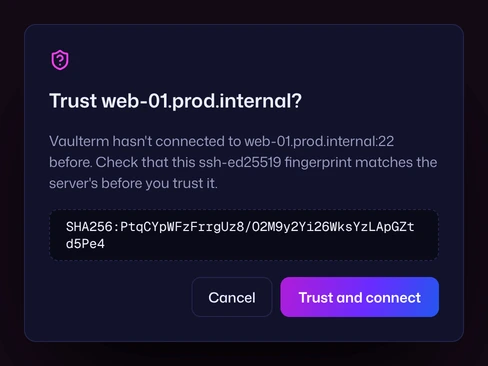
A fingerprint identifies the server. If it matches the one the server really has, you’re talking to the right machine. If it doesn’t, someone could be in the middle.
To check it, run this on the server (through its console, or ask whoever runs it):
ssh-keygen -lf /etc/ssh/ssh_host_ed25519_key.pubThe prompt names the kind of key it’s showing, such as ssh-ed25519. Use the matching file: ssh_host_ecdsa_key.pub for an ecdsa-sha2-… key, ssh_host_rsa_key.pub for rsa-sha2-… or ssh-rsa. Both sides print SHA256 fingerprints, so they compare character for character.
If they match, press Trust and connect. Vaulterm saves the key and won’t ask again for this server. Press Cancel or Escape to stop.
Enter doesn’t trust a key: the prompt doesn’t put the cursor on the trust button, so a stray keypress can’t accept it.
If the server’s key ever changes, Vaulterm blocks the connection instead of asking. Host keys and trust explains why and what to do.
Sign in
Section titled “Sign in”Vaulterm tries the same ways to sign in as OpenSSH does, in this order:
- Your SSH agent. If keys are loaded in an agent, Vaulterm offers them first. On macOS and Linux that’s the agent in
SSH_AUTH_SOCK. On Windows it’s the Windows OpenSSH agent, or PuTTY’s Pageant. - Keyboard-interactive. Servers that ask their own questions, like a password followed by a two-factor code, show each question in a dialog titled with the server’s own heading, or “Verify
[email protected]”. Up to three rounds. - A password. A dialog titled “Password for
[email protected]” asks for it. Type it and press Continue.
If you typed the address without a username (web-01.prod.internal), Vaulterm first asks “Sign in to web-01.prod.internal”:
- If you have identities, choose one under Sign in with, or keep A username and password.
- Type a Username. The Password field is optional: leave it empty and Vaulterm asks only if the server wants one.
- Tick Save as an identity to keep the username and password in your vault for next time.
If an identity already signs in with the username you typed, the dialog says so (“Deploy already signs in as deploy.”) and offers Use it.
Save it as a host
Section titled “Save it as a host”Once you know you’ll come back, save the server:
- Open the Command Center and type the address again.
- Choose “Save
[email protected]as a host”. - The New host sheet opens with the hostname and port filled in. If an identity signs in as
deploy, it’s picked for you. - Give it a Name such as
web-01, pick a Group if you have one, and press Save, or Save and connect to open it straight away.
You can also paste a full address into Hostname or IP in any New host sheet. When you leave the field, Vaulterm splits [email protected]:2222 into the hostname, the port, and the identity that signs in as deploy. If no identity signs in as that user yet, the sheet says “No identity signs in as deploy yet.” with a Create one link.
Every field in the sheet is explained on Hosts.
Good to know
Section titled “Good to know”- Addresses you’ve connected to but not saved stay in the Command Center, marked “Connected before · not saved”. Choose one to connect again. Press
Tabon it for Copy SSH command and Save as a host. - Vaulterm gives a server 15 seconds to answer before it reports a timeout. Time spent answering prompts doesn’t count.
- When a host is saved with an identity that has a key or a stored password, connecting skips the questions above. See Connecting and signing in.
- If you already use an
~/.ssh/config, Bring your hosts over imports every host, key and trusted host key in one go.