Files (SFTP)
The Files tray shows the files on the server you’re connected to, beside its terminal. It uses SFTP over the same connection as the terminal, so there’s nothing else to sign in to.
Open the Files tray
Section titled “Open the Files tray”The tray is on the right of the workspace, collapsed to a thin strip until you need it. Open it with any of these:
Ctrl+Shift+I(⌥⌘Ion a Mac), or the expand button on the strip- Browse files in a terminal’s right-click menu
- Browse files on this host in the Command Center
The tray has three tabs: Files, Tunnels and Snippets. It follows the focused pane: click another pane and the tray shows that server.
The first time, the Files tab says “Browse the files on web-01 over this connection.” Press Browse files. Vaulterm only starts SFTP when you ask, and opens your home folder on the server.
Drag the tray’s left edge to make it wider or narrower. With the edge focused, ← and → resize it.
The Files and Tunnels tabs are for SSH sessions. On a local shell, the tray says “Files, tunnels and snippets are for SSH sessions”, though the Snippets tab still works there.
Browse
Section titled “Browse”The path at the top shows where you are, as a breadcrumb: click any part to go there. Beside it:
- Up one folder (or
Backspace) - Refresh
- New folder
- Upload files
Double-click a folder to open it. Double-click a file to download it.
The list works from the keyboard too:
| Key | Does |
|---|---|
↑ ↓, Home End, PageUp PageDown |
Move through the list |
Enter |
Open a folder, or download a file |
Backspace |
Up one folder |
F2 |
Rename |
Delete |
Delete (asks first) |
ContextMenu key |
The item’s menu |
Right-click a file for Download, Download to…, Open in default app, Rename, Permissions…, Copy path and Delete. Folders have Open instead of the download items and Open in default app.
Upload
Section titled “Upload”- Press Upload files and pick one or more files.
- Or drag files from your computer onto the Files tab. An empty folder says “This folder is empty. Drop files here to upload them.”
Files go into the folder the tray is showing. Each one shows in Transfers at the bottom of the tray.
If a file with that name already exists on the server, the upload stops with “Exists” and offers Replace. Replacing moves the old file aside while the new one is written, so a failed upload never leaves you with half a file. Uploading onto a symlink writes to the file it points at.
Files dragged in from folders that hold keys and credentials (~/.ssh, ~/.gnupg, ~/.aws, ~/.azure, ~/.kube, ~/.docker, ~/.password-store, ~/.config/gcloud, and files like .netrc, .git-credentials and .pgpass) aren’t uploaded: “Didn’t upload id_ed25519: files from key and credential folders can only be uploaded with Upload files.” It stops a stray drag from copying a private key to a server. To upload one on purpose, pick it with Upload files.
Download
Section titled “Download”- Download,
Enteror a double-click saves the file to your Downloads folder. If a file with that name is already there, the new one is callednginx (1).conf,nginx (2).confand so on. - Download to… asks where to save it.
When a download finishes, its row in Transfers has a button to show it in its folder.
Transfers
Section titled “Transfers”Transfers lists every upload and download with its progress. For each one:
- Pause stops it where it is (“Paused at 40%”), and Resume carries on from there, not from the start.
- Cancel stops it and removes the unfinished file.
- Finished transfers say Uploaded or Downloaded.
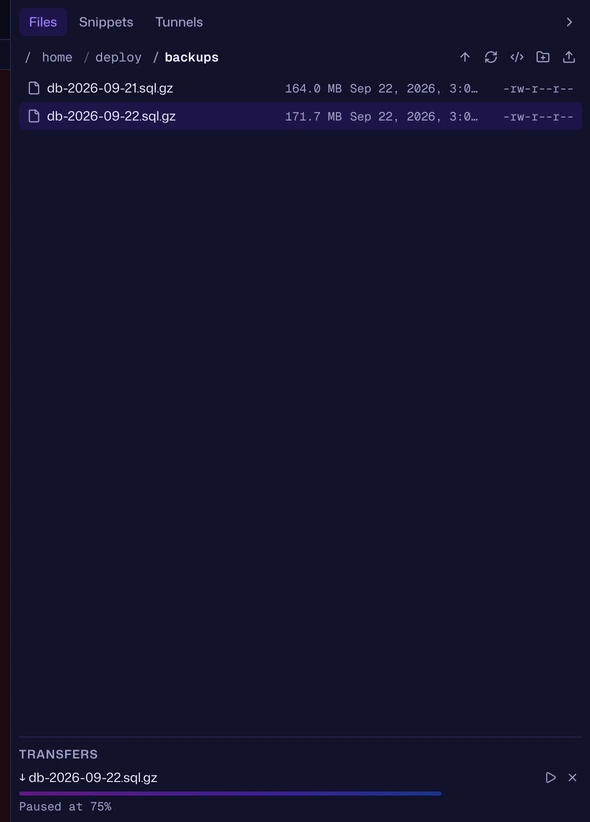
Transfers move in 256 KiB pieces. If the connection drops, they wait and carry on once Vaulterm reconnects, and say they’re waiting for the connection meanwhile. A cancelled or failed download gives its file name back, so the next download of that file doesn’t get a (1).
Edit a remote file in your own editor
Section titled “Edit a remote file in your own editor”Right-click a file and choose Open in default app. Vaulterm downloads a copy and opens it in the program your computer uses for that kind of file. Vaulterm says “Opened nginx.conf. Saving it sends it back to the server.”
Every time you save in your editor, Vaulterm uploads the file back to where it came from.
If someone changed the file on the server after you opened it, Vaulterm doesn’t overwrite it silently. It asks “nginx.conf changed on the server”:
- Overwrite sends your copy anyway.
- Keep theirs leaves the server’s version, and reloads it into your copy so your editor shows it.
The rules:
- The local copy lives in a folder inside Vaulterm’s data folder, and is deleted when Vaulterm quits (or at the next start, if Vaulterm didn’t get to quit properly).
- A file your system might run instead of open gets
.txtadded to the copy’s name, so it opens in an editor:deploy.shbecomesdeploy.sh.txt. That covers scripts (.sh,.py,.rb,.pland the like), programs and installers (.exe,.bat,.ps1,.msi,.AppImage,.deb,.rpm,.desktop) and shortcuts. - The change check compares the file’s size and time on the server, so it catches a change even when it happened in the same second you opened the file.
Rename, new folder, delete
Section titled “Rename, new folder, delete”- Rename:
F2or Rename, type the new name,Enter.Escapecancels. - New folder: the New folder button, type a name,
Enter. - Delete: asks first. A file: “Delete nginx.conf? This deletes it from /etc/nginx on the server. It can’t be undone.” A folder: “Delete logs/ and everything in it?”
Names can’t contain /. If the name is taken, Vaulterm says “A file called nginx.conf already exists.”
Change permissions
Section titled “Change permissions”Right-click and choose Permissions…. The “Permissions for deploy.sh” dialog has read, write and execute checkboxes for Owner, Group and Other, and an Octal field that stays in step with them. Type 755 or 0644 directly if you prefer (“Use three or four digits from 0 to 7, like 644.”).
Files from the Command Center
Section titled “Files from the Command Center”Type ~ in the Command Center while an SSH pane is focused. It lists the files in the folder the tray is showing, and the folders you visited recently on that host. See Find files on a server.
Drop a file on a terminal
Section titled “Drop a file on a terminal”Drag a file from your computer onto an SSH pane, and Vaulterm offers to upload it to the folder the Files tray is showing (or your home folder), or Paste path. On a local shell, dropping a file types its path, quoted. See Drop hosts, groups and files onto panes.
Copy between servers
Section titled “Copy between servers”Drag files from one server straight onto another. They go from server to server, a piece at a time, and never land on this computer. It’s part of Pro.
- In the Files tray, select what to copy: click one,
Ctrl-click (Cmdon a Mac) orShift-click to add more, orCtrl+Afor everything.Escapeclears the selection. - Drag the selection onto another server’s pane: an SSH session, a quick connect or a file connection. Hold it over a tab to open that tab first.
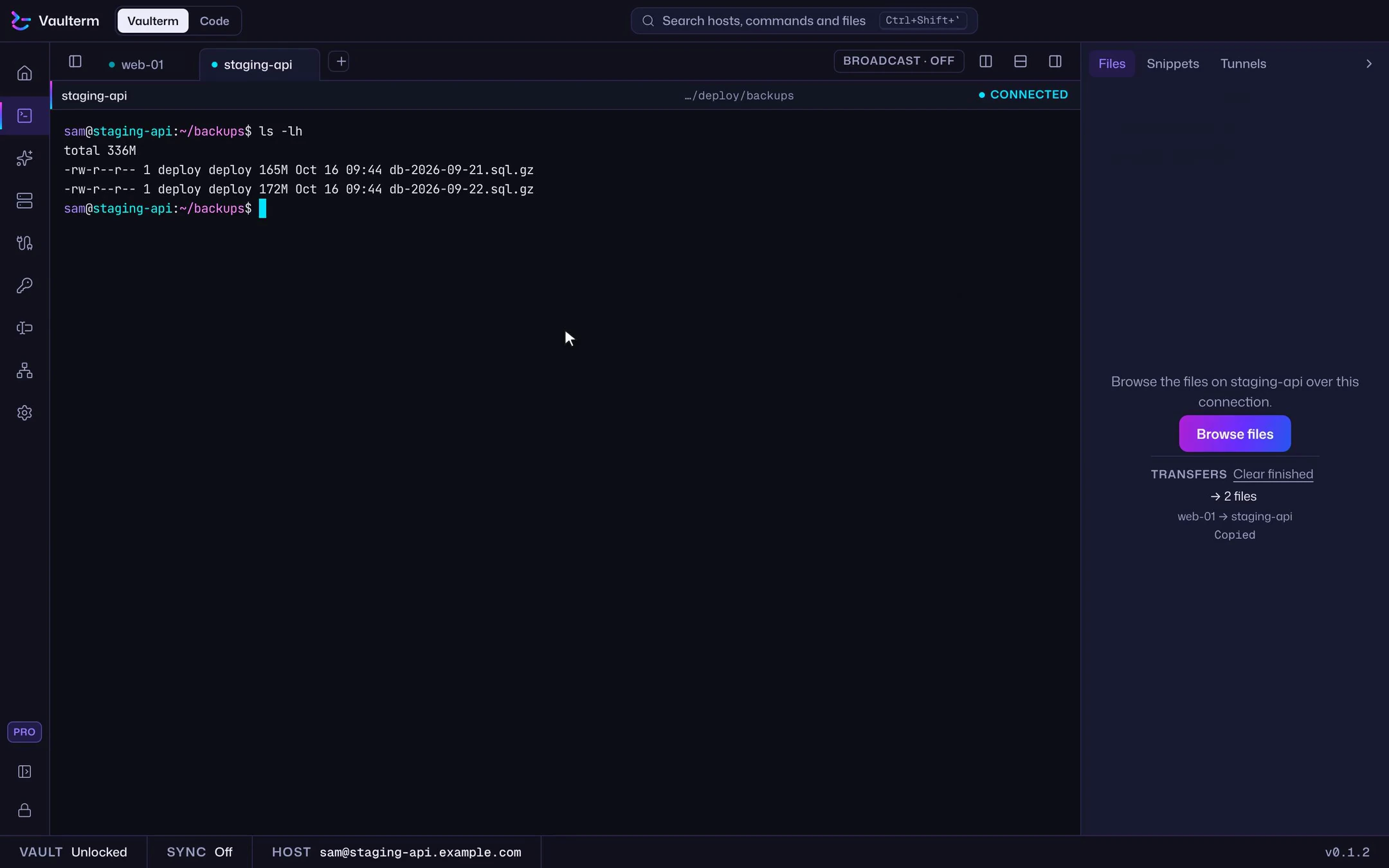
- Let go, and Vaulterm says where the files will land before anything is copied, such as “Copy 2 files to /home/deploy/backups on staging-api”. That’s the folder the server’s shell is in when the shell says so, else the folder its Files tray shows, else its home folder. Choose a folder… picks another.
- If some names are already there, Vaulterm asks once: Replace, Keep both (the copy gets a number, such as
notes (2).txt), or Skip them. A file never replaces a folder, or the other way round.
Folders keep their structure. The copy shows in both servers’ Transfers, such as “web-01 → staging-api”, with pause and cancel like any transfer. If it fails part way, try it again from its row: what already arrived isn’t copied twice. Ending either session cancels it.
Messages you might see
Section titled “Messages you might see”| Message | What it means |
|---|---|
| It no longer exists. Refresh to see the latest. | Someone deleted or moved it on the server. |
| The session is reconnecting. Try again in a moment. | The connection dropped and is coming back. |
| The session has ended. | The terminal’s session closed. Reconnect it. |
Good to know
Section titled “Good to know”- Files go straight between the server and your computer. Nothing passes through anyone else.
- The tray browses as the user you signed in as, with that user’s permissions. To edit files you need
sudofor, copy them somewhere you can write first, or edit them in the terminal. - Hidden files (starting with
.) are shown. - To open a server’s files without a terminal, or an FTP server or S3 bucket, save it as a connection. It opens in a tab with this same files view.