Groups and inheritance
A group holds hosts, and can hold other groups. Its settings apply to every host inside it unless a host sets its own. Set the login for twenty production servers once, on the group, and change it in one place later.
Make a group
Section titled “Make a group”- On the Hosts page, press New group.
- Type a Name, such as
Production. - Pick a Parent group if this group goes inside another one, or leave it at None.
- Set any of the settings below. The sheet reminds you: “Hosts in this group use these settings unless they set their own.”
- Press Save.
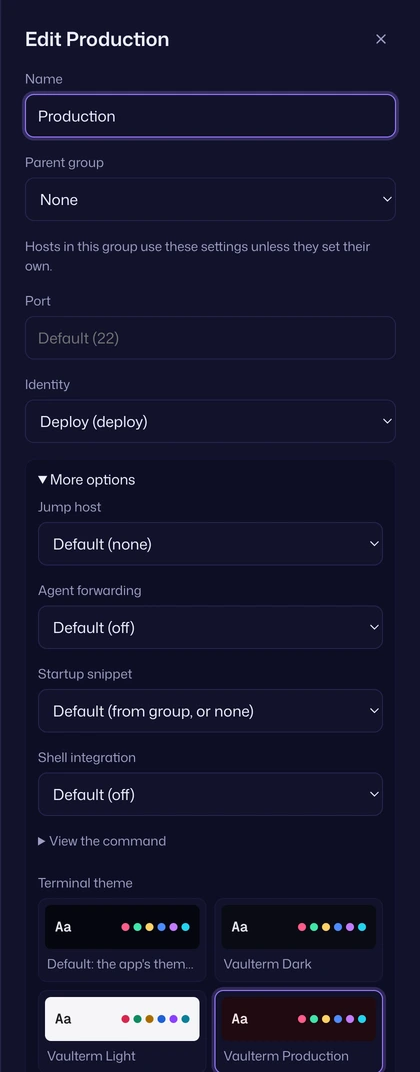
You can also create a group while editing a host: choose New group… at the end of the Group list.
What a group passes down
Section titled “What a group passes down”A group has the same settings as a host, except the hostname, name and tags:
| Setting | Example on a group |
|---|---|
| Port | Every host in Home lab listens on 2222. |
| Identity | Every host in Production signs in as Deploy. |
| Jump host | Everything in Production goes through bastion. |
| Agent forwarding | Turned on for Staging only. |
| Terminal theme | Production is red, so you always know where you are. |
| Shell integration | Every Staging terminal reports its commands and folder to smart panes. |
| Startup snippet | Every Staging terminal runs cd /srv/app && git status when it connects. |
Settings you leave at Default on the group come from the group above it, if there is one.
A worked example
Section titled “A worked example”Say you have these groups and hosts:
Production identity: Deploy, theme: Vaulterm Production, jump host: bastion├── bastion├── web-01├── web-02└── Databases port: 5433 └── db-primary port: 22Staging identity: Ops, theme: Solarized Dark└── staging-apiHere’s what each host ends up with:
| Host | Signs in as | Port | Jump host | Theme |
|---|---|---|---|---|
bastion |
Deploy | 22 | none (see below) | Vaulterm Production |
web-01 |
Deploy | 22 | bastion | Vaulterm Production |
db-primary |
Deploy (from Production, two levels up) | 22 (its own) | bastion | Vaulterm Production |
staging-api |
Ops | 22 | none | Solarized Dark |
The rules:
- The nearest value wins. Vaulterm looks at the host first, then its group, then that group’s parent, and so on up. The first one that sets a value decides it.
- A host’s own setting always wins.
db-primarysets port 22, so theDatabasesgroup’s 5433 doesn’t apply to it. - A group’s jump host doesn’t apply to that jump host.
bastionis inProduction, whose jump host isbastion, but it doesn’t try to connect through itself. It connects directly. - A jump host uses its own settings. When
web-01connects throughbastion, the connection tobastionusesbastion’s own identity, port and jump host, so jump hosts can chain. - If nothing up the chain sets a value, Vaulterm’s default applies: port 22, no jump host, agent forwarding off, your app’s terminal theme, no startup snippet, and asking who to sign in as when you connect.
Override a setting on one host
Section titled “Override a setting on one host”Open the host and change the setting. It now wins over the group’s. To go back to the group’s value, choose the Default option for that setting again. The Default option for each setting says where its value comes from, for example “Default (from group, or prompt on connect)” for Identity.
Turn off a group’s startup snippet on one host
Section titled “Turn off a group’s startup snippet on one host”A group’s startup snippet runs on every host in it. To stop it on one host, set that host’s Startup snippet to None. Default would inherit the group’s snippet; None means no snippet at all.
Nest groups
Section titled “Nest groups”Set Parent group to put a group inside another. The Hosts page shows it indented under its parent, and its hosts inherit from both, nearest first.
A group can’t go inside itself or one of its own subgroups. Vaulterm says “A group can’t sit inside one of its own subgroups.”
Move hosts between groups
Section titled “Move hosts between groups”Open the host and change Group. Its inherited settings change straight away to the new group’s.
Or drag the host onto the group on the Hosts page, or use Move to… from its menu. Several hosts, and whole groups, move the same way. See Organise hosts and groups.
Connect to every host in a group
Section titled “Connect to every host in a group”In the Command Center, find the group (type @ and part of its name), press Tab, and choose “Connect to all 4 hosts”. Each opens in its own tab.
Or drag the group into the workspace, or choose Open all… from its menu in the host list: Vaulterm asks whether to open the hosts As tabs, as a grid in one tab, or only the ones you Choose…. See Drop hosts, groups and files onto panes.
Delete a group
Section titled “Delete a group”Only an empty group can be deleted. Move or delete its hosts and subgroups first. If anything is still in it, Vaulterm says “It’s still used by host web-01. Change that first.”
Open the group and press Delete group. Vaulterm asks first, with Cancel focused.
Good to know
Section titled “Good to know”- Groups are stored in your encrypted vault, like hosts.
- The Hosts page shows each host’s address with the port and user it ends up with after inheritance, so you can check the result without opening the host.
- Terminal themes fall back up the chain too: if a host’s theme was imported on another computer and isn’t here, the group’s theme is used instead.
- Imported hosts arrive in a group called Imported from this computer or Imported from PuTTY. Rename it, move it inside another group, or move the hosts out and delete it.