SSH keys
An SSH key signs you in without a password. It comes in two halves: the private key, which stays in your vault and never leaves Vaulterm, and the public key, which you put on each server you want to reach.
Keys are on the Keys page in the left rail, under SSH keys. Each row shows the key’s name, its type and its fingerprint.
Generate a key
Section titled “Generate a key”- On the Keys page, press Generate key.
- Give it a Name that says where it’s used, such as
macbook-proorci-deploy. - Pick a Type.
- Press Generate.
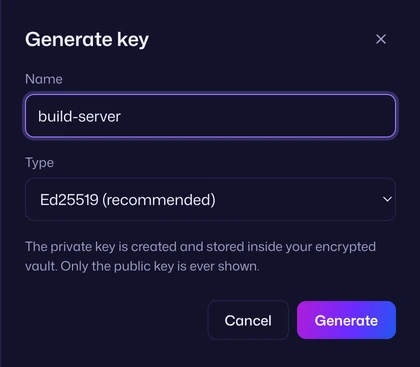
Which type to pick:
| Type | Use it when |
|---|---|
| Ed25519 (recommended) | Almost always. Short, fast, and supported by every current SSH server. |
| ECDSA P-256 | A server or policy asks for ECDSA. |
| RSA 4096 (for older servers) | A server is old enough not to accept Ed25519 (OpenSSH before 6.5, from 2014), or a device only takes RSA. Generating one takes a few seconds. |
The private key is created inside your vault. There’s no file on disk, and Vaulterm never shows the private key, only the public one.
Generated keys have no passphrase of their own: your vault password already protects them.
Put the public key on a server
Section titled “Put the public key on a server”A server lets a key in when its public key is in the ~/.ssh/authorized_keys file of the user you sign in as.
-
On the Keys page, press Copy public key on the key’s row. It copies one line, such as
ssh-ed25519 AAAAC3NzaC1lZDI1NTE5AAAAIG4r…. -
Connect to the server the way you do now (with a password, say).
-
Run these, pasting the key where it says:
Terminal window mkdir -p ~/.ssh && chmod 700 ~/.sshecho 'ssh-ed25519 AAAAC3NzaC1lZDI1NTE5AAAAIG4r…' >> ~/.ssh/authorized_keyschmod 600 ~/.ssh/authorized_keys -
Make an identity that signs in as that user with this key, and set it on the host.
The next connection signs in with the key. Once it works, you can turn off password logins on the server if you want to.
A snippet makes step 3 a one-step job on every new server:
mkdir -p ~/.ssh && chmod 700 ~/.ssh && echo '{{public_key}}' >> ~/.ssh/authorized_keys && chmod 600 ~/.ssh/authorized_keysYou can also copy a key’s public half from the Command Center: type % and the key’s name, and press Enter.
Import a key you already have
Section titled “Import a key you already have”- On the Keys page, press Import key.
- Paste the private key into Private key, or press Choose file… and pick the file (for example
~/.ssh/id_ed25519, not the.pubone). - Give it a Name. Choosing a file fills in the file’s name.
- If the key has a passphrase, type it in Passphrase.
- Press Import.
Vaulterm takes:
- OpenSSH private keys:
-----BEGIN OPENSSH PRIVATE KEY----- - PEM keys:
-----BEGIN RSA PRIVATE KEY-----,-----BEGIN EC PRIVATE KEY-----,-----BEGIN PRIVATE KEY-----and-----BEGIN ENCRYPTED PRIVATE KEY----- - PuTTY keys: files starting
PuTTY-User-Key-File-
The passphrase is used once to read the key, then the key is stored in your vault without it. Your original file isn’t changed or deleted.
To bring in all your keys at once, with the hosts that use them, use Bring your hosts over instead.
| Message | What it means |
|---|---|
| Give the key a name. | Name is empty. |
| Paste a private key or choose a file. | Private key is empty. |
| That file is too large to be a private key. | The file is over 32 KB. You probably picked the wrong file. |
Use a key
Section titled “Use a key”Keys aren’t set on hosts directly. An identity says “sign in as deploy with the key ci-deploy”, and hosts or groups use the identity. One key can be used by many identities.
Delete a key
Section titled “Delete a key”A key used by an identity can’t be deleted. Vaulterm says “Couldn’t delete ci-deploy. It’s still used by identity Deploy. Change that first.” Pick another key for that identity, or delete the identity, first.
Press Delete on the key’s row. Vaulterm asks first, with Cancel focused: “The private key goes from your vault, and servers that only trust it will stop letting you in. This can’t be undone.” Press Delete key.
Deleting a key doesn’t remove its public half from any server’s authorized_keys. Remove that line on each server yourself if the key shouldn’t get in any more.
Good to know
Section titled “Good to know”- The private key never leaves Vaulterm’s core, the part that makes connections. The window you see, the clipboard and the disk never have it.
- Each key’s fingerprint (
SHA256:…) is shown on its row, so you can match it against what a server or GitHub shows. - Vaulterm can’t export a private key. Keep your original file if you also use the key elsewhere.
- Your SSH agent’s keys can be used without importing them: make an identity that signs in with ssh-agent.