Host keys and trust
Every SSH server has a host key that identifies it. Vaulterm remembers each server’s key the first time you trust it, and checks it on every connection after that. If the key ever changes, Vaulterm stops.
The first time you connect
Section titled “The first time you connect”Vaulterm hasn’t seen the server before, so it asks “Trust web-01.prod.internal?”:
Vaulterm hasn’t connected to web-01.prod.internal:22 before. Check that this ssh-ed25519 fingerprint matches the server’s before you trust it.
Under that is the fingerprint, such as SHA256:3YqZ1c9pF0w6q2mS8xTQe7Kc5Vb1nR4hJd0aLuOy2Xk.
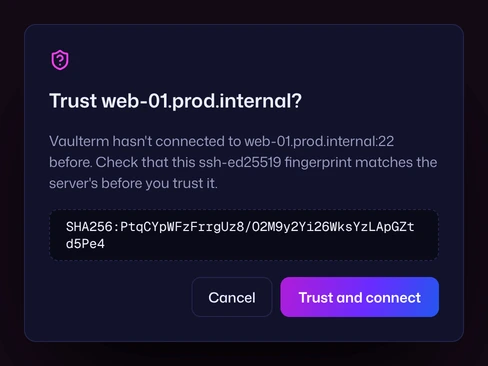
- Trust and connect saves the key in your vault and connects.
- Cancel (or
Escape) doesn’t connect. The pane says “You didn’t trust the server’s host key, so Vaulterm didn’t connect.”
The dialog puts the focus on itself, not on Trust and connect, so pressing Enter without looking doesn’t trust anything.
Check a fingerprint
Section titled “Check a fingerprint”On the server, through its console, a trusted session, or whoever runs it:
ssh-keygen -lf /etc/ssh/ssh_host_ed25519_key.pubIt prints something like 256 SHA256:3YqZ1c9pF0w6q2mS8xTQe7Kc5Vb1nR4hJd0aLuOy2Xk root@web-01 (ED25519). The part starting SHA256: must match what Vaulterm shows, character for character.
Use the file for the kind of key Vaulterm names:
| Vaulterm shows | File on the server |
|---|---|
ssh-ed25519 |
/etc/ssh/ssh_host_ed25519_key.pub |
ecdsa-sha2-nistp256 (or 384, 521) |
/etc/ssh/ssh_host_ecdsa_key.pub |
rsa-sha2-512, rsa-sha2-256 or ssh-rsa |
/etc/ssh/ssh_host_rsa_key.pub |
Cloud providers often print host key fingerprints in the server’s boot log or console output, which is a safe place to check them before your first connection.
Servers with more than one key
Section titled “Servers with more than one key”Most servers have several host keys, one of each kind. Vaulterm can trust a server with more than one.
When a server Vaulterm already trusts offers a kind of key it hasn’t seen from that server, it asks again, with a note:
Vaulterm already trusts a different kind of key for web-01.prod.internal:22. Check that this ecdsa-sha2-nistp256 fingerprint matches the server’s before you trust it too.
This is normal after importing only some of a server’s keys, or when a server adds a key type. Check it the same way.
Vaulterm asks servers for the kinds of key it already trusts first, the same way OpenSSH does, so a server trusted with its ECDSA key keeps being asked for that one and doesn’t look new.
When a key changes
Section titled “When a key changes”If a server offers a different key of a kind Vaulterm already trusts, Vaulterm refuses to connect:
The server’s host key has changed since you last connected, so Vaulterm stopped. Someone may be intercepting the connection. If you know the server was reinstalled, forget its saved key in the host’s settings and connect again.
There’s no button to trust the new key from here, on purpose: that’s exactly what someone in the middle would want you to press.
A changed key usually means one of these:
- The server was reinstalled or rebuilt from an image.
- A different machine now has that address (a DHCP lease moved, a load balancer changed, a container was replaced).
- Someone is intercepting the connection.
Find out which before you do anything. If it’s one of the first two, forget the old key and connect again, checking the new fingerprint.
Forget a host key
Section titled “Forget a host key”- On the Hosts page, open the host.
- Press Forget host key at the bottom of the sheet.
- Vaulterm asks “Forget web-01’s host key?”, with Cancel focused. Press Forget host key.
Vaulterm says “Saved host key forgotten. Vaulterm will show its fingerprint again next time you connect.” Connect, check the new fingerprint, and trust it.
Forgetting removes every key Vaulterm trusts for that hostname and port. Other hosts with a different address aren’t affected.
For a server you only reach by quick connect, save it as a host first (see Save it as a host), then forget its key from there.
Keys from known_hosts and PuTTY
Section titled “Keys from known_hosts and PuTTY”Importing can copy the keys your ~/.ssh/known_hosts (and known_hosts2) already trusts, including hashed lines, and the host keys PuTTY trusts on Windows. Servers you trusted with OpenSSH or PuTTY then connect without a prompt. Your known_hosts file isn’t changed.
Good to know
Section titled “Good to know”- Trusted keys are stored in your encrypted vault, by hostname and port.
web-01.prod.internalon port 22 and on port 2222 are two different entries. - A host reached through a jump host is checked the same way, and so is each jump host on the way.
- Deleting a host doesn’t forget its key. Adding the same server again later won’t ask.