Open a project in Vaulterm Code
Vaulterm Code is the editor inside Vaulterm. It opens in its own window from the same install, so there is nothing else to download. For what it does and what each plan includes, see Vaulterm Code.
Open Code
Section titled “Open Code”Press Code at the top left of the title bar, beside Vaulterm. Code opens in its own window. Press Vaulterm there to go back.
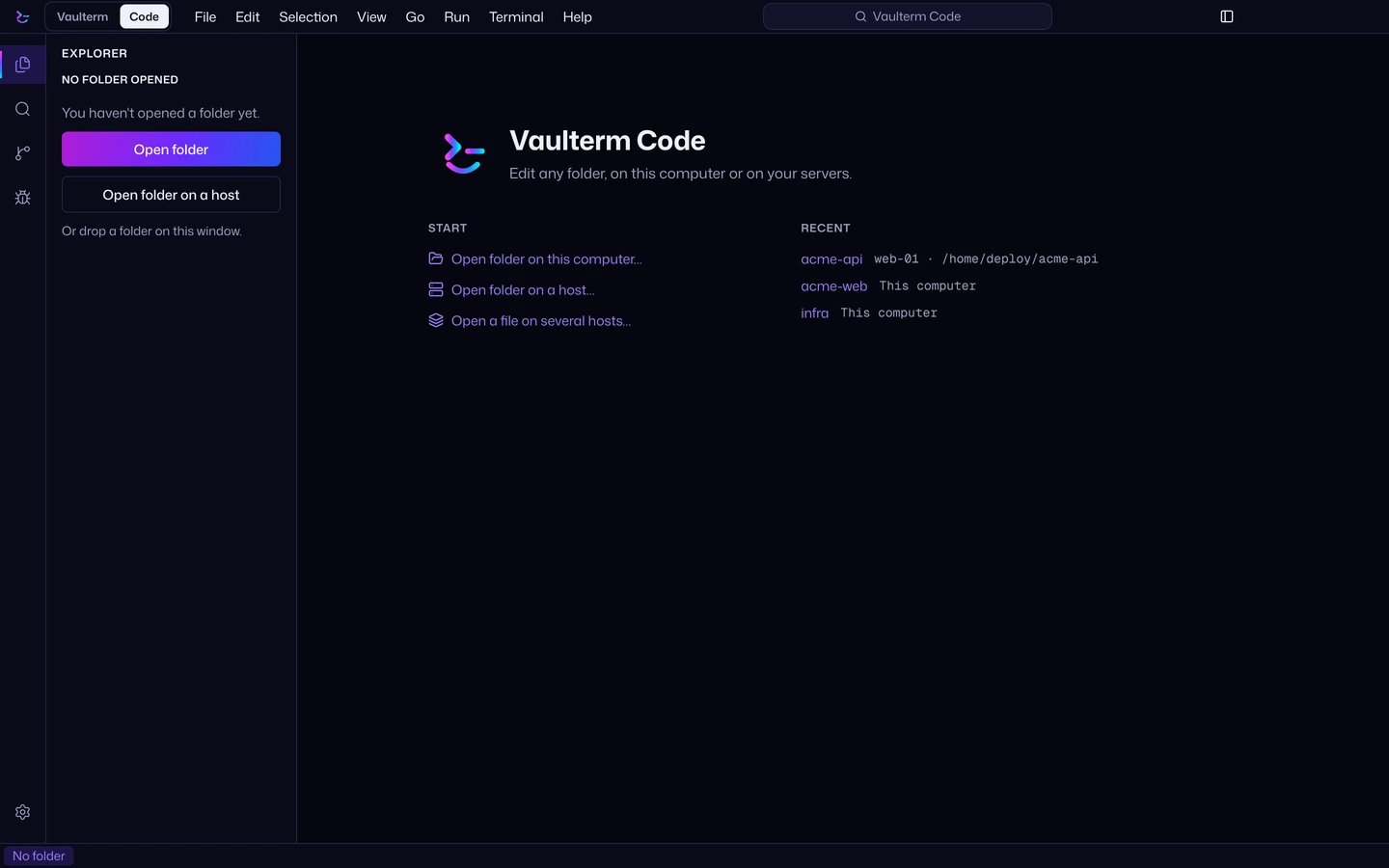
Open a folder here or on a saved server
Section titled “Open a folder here or on a saved server”- In Code, choose where the folder is: This computer, or one of your saved servers.
- Pick the folder.
You can also right-click a host in Vaulterm and choose Open in Code…. A folder on this computer is free. A folder on a saved server needs Pro. The folder is edited in place, and nothing is copied over first.
Trust a folder
Section titled “Trust a folder”Language servers can run code from a project, so they stay off until you trust its folder. Code asks when you open one: “Language servers can run code from this folder. Turn them on?” Press Turn on to trust it, or Not now to leave them off. Language servers need Pro.
If a language server isn’t installed where the project is, Vaulterm offers to install it, and asks first. Vaulterm Code puts no server of its own on the host: language servers, debug adapters and Claude Code run on it, and are found on its path.
Trusted folders are listed in Settings → Code. See Trusted folders.
Editor basics
Section titled “Editor basics”- Quick open:
Ctrl+P(⌘Pon a Mac) opens a file by name. - Command palette:
Ctrl+Shift+P(⇧⌘P) lists every command. - Vim keymap: choose it in Settings → Code, under Keymap. It works in editors only.
The keys are VS Code’s, with ⌘ on a Mac.
Terminals and tasks
Section titled “Terminals and tasks”Terminals in the panel start in the project folder, on the same machine as the code. Open the Tasks view to see what the project can run: scripts from package.json, a Makefile, Cargo.toml and others, and the tasks in .vscode/tasks.json. What a task prints is read by its problem matcher, and what it finds lands in Problems.
Stage, sync and cherry-pick
Section titled “Stage, sync and cherry-pick”What Source Control does: see Vaulterm Code.
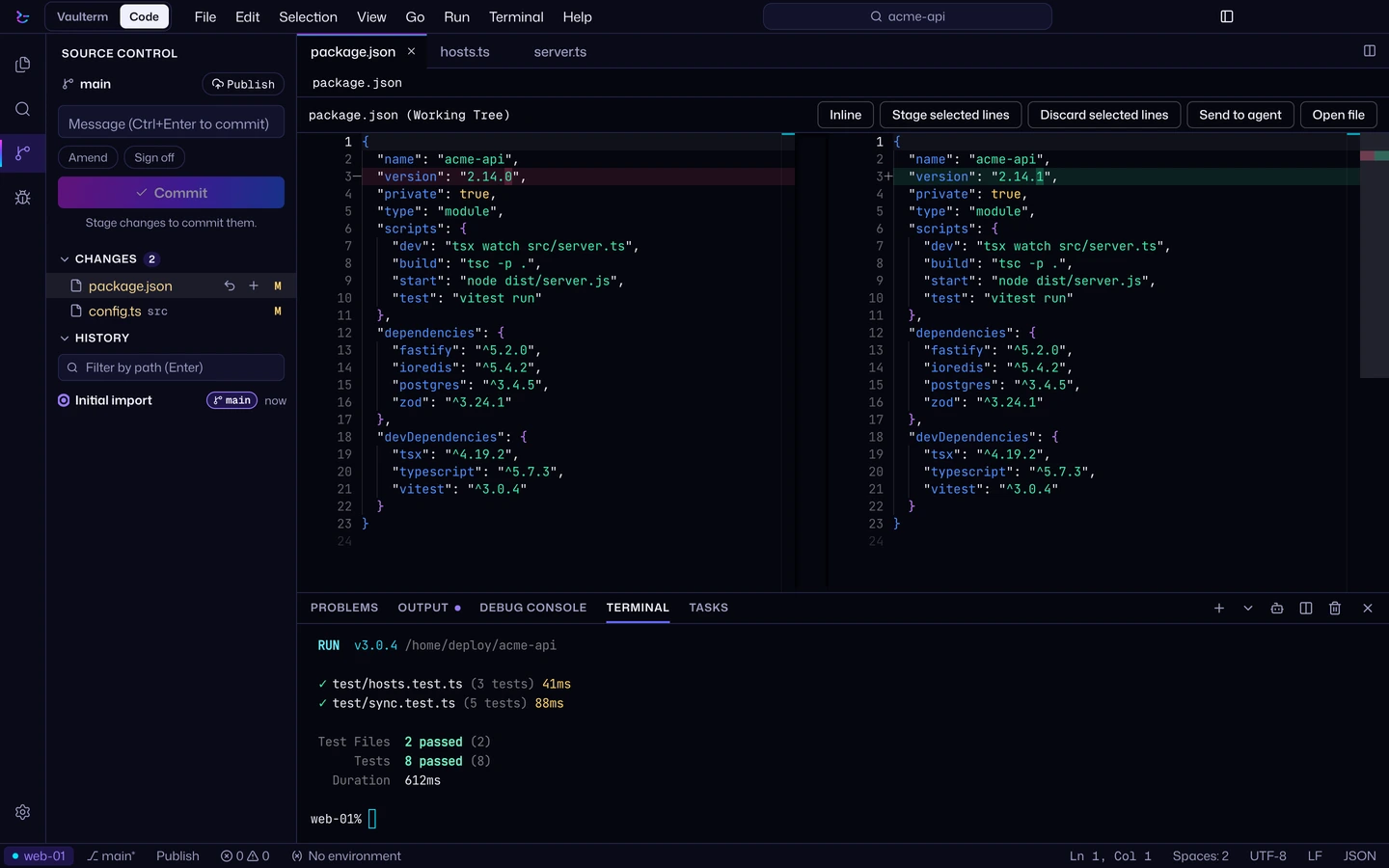
To commit:
- Open Source Control in the side bar.
- Stage a whole file, or open its diff, select lines and press Stage selected lines.
- Write a message and commit. Before each commit, Vaulterm checks the lines you added for keys, tokens and passwords, your vault’s own included.
- Push or pull from the branch bar at the top.
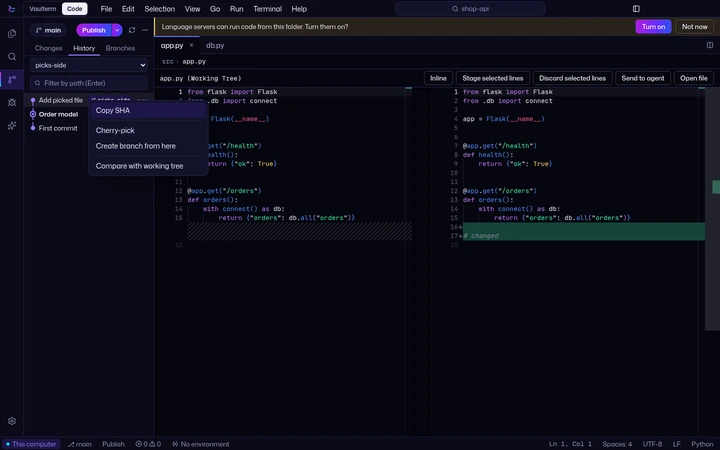
History, blame, comparing branches and the merge editor need Pro.