Identities
An identity is who you sign in as, and how: a username plus a key, a password, or your SSH agent. Hosts and groups point at an identity instead of each keeping their own login.
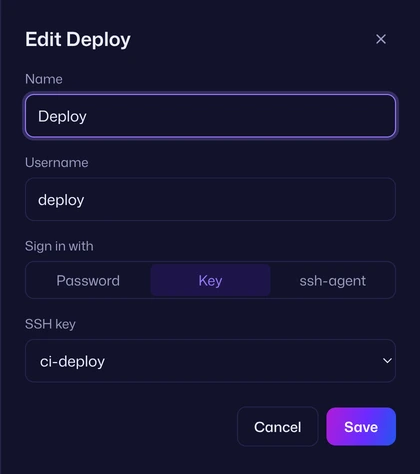
Say every production server has a deploy user that takes your ci-deploy key. Make one identity called Deploy that signs in as deploy with ci-deploy, and set it on the Production group. Every host in the group now signs in that way. When you replace the key, you change it in one place.
Identities are on the Keys page, under Identities. Each row shows the name, the username and how it signs in: “Key: ci-deploy”, “Password saved”, “Asks for password” or “ssh-agent”.
Make an identity
Section titled “Make an identity”- On the Keys page, press New identity. Or choose New identity… from the Identity list in a host or group editor.
- Give it a Name you’ll recognise in lists, such as
DeployorOps. - Type the Username to sign in as, such as
deploy. - Under Sign in with, pick Password, Key or ssh-agent (see below).
- Press Save.
Sign in with a key
Section titled “Sign in with a key”Pick Key, then choose one under SSH key. If you haven’t made or imported any keys yet, the sheet says “Generate or import a key first.” See SSH keys.
The server needs the key’s public half in the user’s ~/.ssh/authorized_keys. See Put the public key on a server.
Sign in with a password
Section titled “Sign in with a password”Pick Password. Then either:
- type the password in Password to save it in your vault, or
- leave it empty (“Leave blank to be asked each time”) and Vaulterm asks when you connect.
Saved passwords are never shown again. When you edit the identity later, the field says “Saved (leave blank to keep it)”:
- Leave it empty to keep the saved password.
- Type a new one to replace it.
- Tick Remove the saved password to go back to being asked each time.
Vaulterm offers a saved password the way a server expects it, including answering a “Password:” question before a two-factor code. See Two-factor codes.
Sign in with your SSH agent
Section titled “Sign in with your SSH agent”Pick ssh-agent. “Vaulterm signs in with the keys loaded in your running ssh-agent.” Use this when your keys live in an agent already, such as 1Password, KeePassXC, GNOME Keyring, the Windows OpenSSH agent or Pageant, and you’d rather they stayed there. See Your SSH agent.
Use an identity
Section titled “Use an identity”Set it on a host or a group, in the Identity list:
- On a group, it applies to every host in the group (and in its subgroups) that doesn’t set its own. See Groups and inheritance.
- On a host, it wins over the group’s.
- Default means “the group’s, or ask when connecting”.
When you paste [email protected] into a new host’s Hostname or IP, Vaulterm picks the identity that signs in as deploy for you.
Save a login as you connect
Section titled “Save a login as you connect”You don’t have to make identities up front. When you connect without one, the “Sign in to web-01.prod.internal” dialog has Save as an identity (or Save as an identity and use it for this host for a saved host). Tick it, and the username and password you type become an identity.
After a quick-connect login like [email protected] works, Vaulterm also offers once: “Save deploy as an identity?”, with Save and Not now.
Change or delete an identity
Section titled “Change or delete an identity”Click the edit button on the identity’s row, change what you need, and press Save. Every host using it signs in the new way from its next connection.
An identity that a host or group uses can’t be deleted. Vaulterm says “Couldn’t delete Deploy. It’s still used by host web-01. Change that first.” Set that host or group to another identity (or Default) first.
Press Delete on the identity’s row. Vaulterm asks first, with Cancel focused: “Its saved password or key choice goes with it. This can’t be undone.” Press Delete identity.
Deleting an identity doesn’t delete its key.
What Vaulterm checks when you save
Section titled “What Vaulterm checks when you save”| Message | Fix |
|---|---|
| Give the identity a name. | Fill in Name. |
| Enter a username. | Fill in Username. |
| Choose a key. | You picked Key but no key under SSH key. |
Good to know
Section titled “Good to know”- Identities, and their saved passwords, are stored in your encrypted vault.
- The Command Center finds hosts by the identity they sign in as: typing
deploylists every host that signs in asdeploy. - Typing
%in the Command Center lists identities and keys. Choosing an identity opens it for editing. - A password you type when connecting, without saving it, is used for that connection only.