Snippets
A snippet is a saved command. Run it in the terminal you’re in, on several servers at once, or every time a host connects. Snippets are stored in your encrypted vault.
Save a snippet
Section titled “Save a snippet”- Open Snippets in the left rail and press New snippet.
- Give it a Name, such as
Restart a service. - Type the Command, for example
sudo systemctl restart {{service}}. Multi-line commands are fine. - Add a Description and Tags (such as
deploy, logs) if you like. - Press Save.
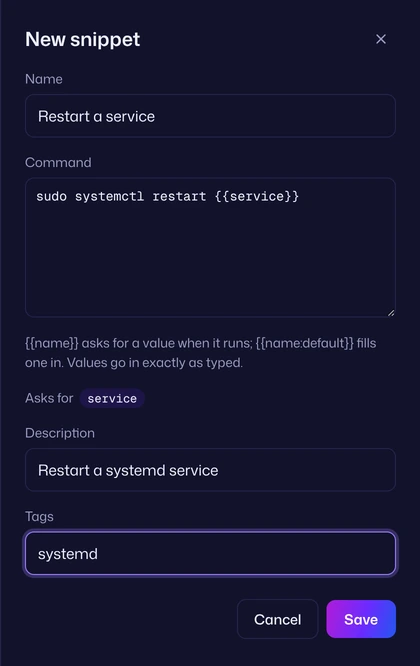
As you type the command, Asks for under it lists the variables it will ask for, or says “nothing: it runs as it is”.
The limits: a name up to 100 characters, a command up to 64 KiB, a description up to 500 characters.
Variables
Section titled “Variables”You restart services on a few servers, and the service name changes each time. Save this:
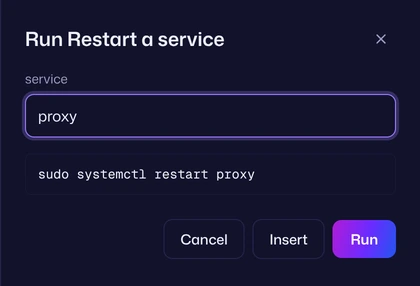
sudo systemctl restart {{service}}Run it and Vaulterm asks for service. Type nginx and the dialog shows the finished command, sudo systemctl restart nginx, before anything is sent.
The rules:
{{name:default}}fills in a default you can change.- A name used twice is asked once.
\{{types a literal{{.- Values go in exactly as typed. Vaulterm doesn’t expand them again.
More examples:
| Command | Asks for | Sends |
|---|---|---|
git pull && make deploy ENV={{env:staging}} |
env, filled in with staging |
git pull && make deploy ENV=staging if you leave it |
tail -f /var/log/{{app}}/{{app}}.log |
app once |
tail -f /var/log/api/api.log |
docker logs {{container}} --since {{since:10m}} |
container, and since filled in with 10m |
docker logs web --since 10m |
echo '\{{ not a variable }}' |
nothing | echo '{{ not a variable }}' |
grep -r "{{pattern}}" {{path:}} |
pattern, and path which may be left empty |
grep -r "timeout" |
More rules:
- A variable’s name is a letter or
_, then letters, digits or_, up to 32 characters.{{service_name}}is a variable;{{service name}}isn’t, and stays in the command as text. - A
{{with no closing}}stays as text. - If a variable appears twice with different defaults, the first one counts.
- Every variable needs a value before the snippet can run. The dialog says “Fill in service” until it has one. The only exception is a default that’s explicitly empty, like
{{path:}}: that one may be left blank. - Values aren’t quoted for you. If a value might contain spaces, put quotes around the variable in the command:
cd "{{folder}}".
Run a snippet in the terminal you’re in
Section titled “Run a snippet in the terminal you’re in”From the Command Center: type # and part of the snippet’s name, then press Enter.
From the tray: press Ctrl+Shift+I (⌥⌘I on a Mac), open the Snippets tab, and click the snippet.
The snippet runs in the focused pane. If it has variables, the Run dialog asks for them first and shows the finished command under Preview. Press Run. A snippet without variables runs straight away.
Snippets work in local shells too, not only SSH sessions. If no terminal is open, Vaulterm says “Open a terminal to run a snippet in”.
A snippet with more than one line asks first, with Cancel focused: “Run Deploy? It sends 4 lines to this terminal straight away.” Single-line snippets don’t ask.
Type it without running it
Section titled “Type it without running it”Choose Insert instead of running: in the Command Center, highlight the snippet and press Tab; in the tray, use the snippet’s More actions button. The command is typed into the terminal and Enter isn’t pressed, so you can change it first.
Run a snippet on several hosts
Section titled “Run a snippet on several hosts”- In the Command Center, highlight the snippet, press
Tab, and choose Run on…. Or choose Run on… from the snippet’s More actions button in the tray. - The Run on… dialog lists your hosts. Search hosts narrows the list. Tick the ones you want.
- Fill in any variables. The preview shows what every host will get.
- Press the run button, which names how many hosts, such as “Run on 3 hosts”.
What happens next:
- Hosts that already have a connected terminal get the command in that terminal straight away.
- Hosts without one get a new tab each, and the command runs as soon as it connects.
- A host that hasn’t connected within 60 seconds is skipped, and Vaulterm says so: “Didn’t run on web-02: couldn’t connect”.
Every host gets the same values. To run with different values per host, run it on each one separately.
Running on more than one host asks first: “Run Restart a service on 3 hosts? It sends a command to each of them straight away.” Press “Run on 3 hosts”.
Multi-line snippets
Section titled “Multi-line snippets”A snippet can be several lines:
cd /srv/appgit pullnpm cisudo systemctl restart appWhen the shell on the other end supports bracketed paste (bash, zsh and fish do by default), Vaulterm sends the whole snippet as one paste, then presses Enter once. The shell sees all the lines together, as if you’d pasted them, rather than running each line as it arrives. Blank lines at the end are dropped.
If a line fails, the next ones still run, as they would if you’d typed them. Join lines with && (or put set -e at the top) when a failure should stop the rest.
Startup snippets
Section titled “Startup snippets”A startup snippet runs by itself when a terminal to a host first connects. Use it for things you’d otherwise type every time: cd /srv/app && git status, sudo -i, tmux attach || tmux new.
Set it in a host’s or group’s More options, under Startup snippet:
- On a group, it runs on every host in the group (and its subgroups) that doesn’t set its own. See Groups and inheritance.
- On a host, it wins over the group’s.
- None on a host turns off the group’s snippet for that host.
When it runs:
- Once per pane, when it first connects. Not again after a reconnect.
- Not for local shells.
A startup snippet with variables can’t run by itself, since nobody’s there to answer. The pane shows “Startup snippet needs values: Restart a service” with Run…, which opens the Run dialog to fill them in, and Skip.
Find snippets
Section titled “Find snippets”On the Snippets page, Search by name, command or tag filters the list. Tags show as buttons under the search field: press one or more to show only snippets with those tags. Each row shows the snippet’s name, the first line of its command, and its variables.
In the Command Center, # searches snippets only.
Edit, copy and delete
Section titled “Edit, copy and delete”- Edit: the edit button on the Snippets page, Edit in the tray’s More actions button, or Edit in the Command Center’s
Tabmenu. - Copy: in the Command Center, highlight the snippet, press
Tab, and choose Copy to put the command, variables and all, on the clipboard.
- Delete: open the snippet and press Delete. Vaulterm asks first, with Cancel focused, and says if it’s a startup snippet anywhere: “It’s the startup snippet of 2 hosts and 1 group, and is cleared there too.” Press Delete snippet.
Good to know
Section titled “Good to know”- Snippets are sent exactly as saved, with your values dropped in. Vaulterm doesn’t run them through a shell of its own first, so
$HOMEand~mean the server’s, not yours. - A snippet is typed into the terminal, like you typing it. It runs as the user you’re signed in as, in the folder you’re in.
- If you send a snippet to a pane whose session has ended, Vaulterm says “Couldn’t run the snippet: that pane has no session”.
- Keep secrets out of snippets. They’re encrypted in the vault, but once sent they’re in the server’s shell history like any command.