Connections (SFTP, FTP, FTPS and S3)
Connections in the left rail keeps the places you go to for files rather than a terminal: an SFTP server, an FTP or FTPS server such as a NAS or a web host, or an S3 bucket on Amazon S3, Cloudflare R2, Backblaze B2, Wasabi, MinIO or another S3-compatible store. Each one opens as a tab of files, with the same browsing, uploads, downloads and editing as the Files tray.
SFTP connections come with every plan. FTP, FTPS and S3 connections need Pro. See Without Pro.
The page also keeps Telnet, rlogin and Serial connections, which open as terminals rather than files. They have a page of their own: Telnet, rlogin and Serial.
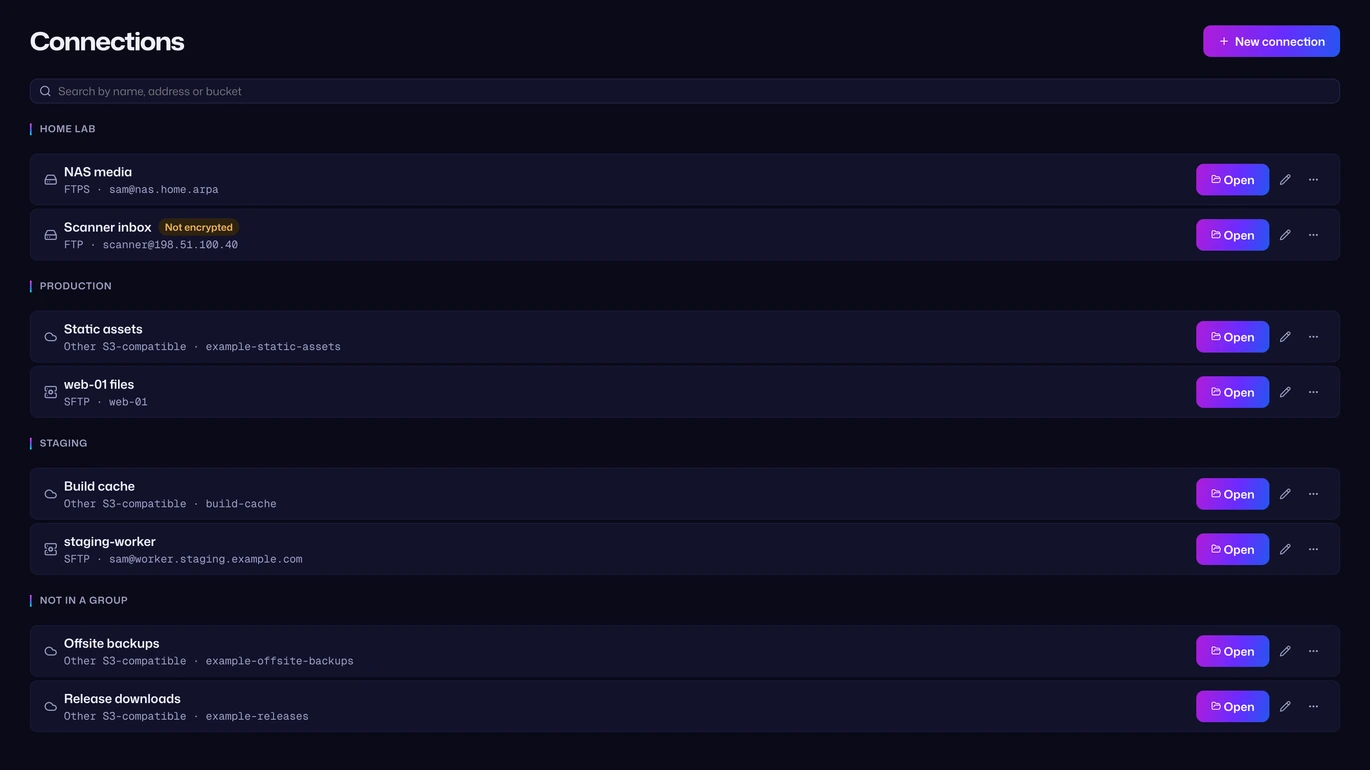
The Connections page
Section titled “The Connections page”Open it with Connections in the left rail, or Go to Connections in the Command Center.
Connections are listed in the same groups as your hosts, with the rest under “Not in a group”. Each row shows the connection’s name and where it goes, such as FTPS · [email protected], Amazon S3 · acme-static-assets or SFTP · web-01. A connection that sends its password and files unencrypted has a Not encrypted chip.
Search by name, address or bucket filters the list as you type. With no connections yet, the page says “No connections yet. Save an SFTP or FTP server, or an S3 bucket, and its files open in a tab.”
On each row:
- Open (or a double-click on the row) opens its files in a new tab.
- The pencil edits it.
- The
…button has Open, Edit, Duplicate and Delete.
Add a connection
Section titled “Add a connection”- Press New connection.
- Give it a Name, such as
Photos bucket.
- Pick its Kind: SFTP, FTP or S3 under Files, or Telnet, Serial or rlogin under Terminal (see Telnet, rlogin and Serial). The kind can’t be changed once it’s saved.
- Fill in the fields for that kind (below).
- Pick a Group if you have groups, or leave No group.
- Press Save.
Names can be up to 100 characters. A vault holds up to 500 connections.
“Files over SSH, from a saved host or an address.” Under Connect to, choose one:
- A saved host: pick the Host. “It signs in with the host’s identity and checks its host key.” The connection then follows the host: change the host’s address or identity and the connection uses the new one.
- An address: type the Address and, if it isn’t 22, the Port. Add a Username, and an Identity to sign in with, or leave Ask for a password.
The first connection to an address checks its host key the same way a terminal does. See Host keys.
FTP and FTPS
Section titled “FTP and FTPS”“An FTP or FTPS server, like a NAS or a web host.”
| Field | What to put |
|---|---|
| Address | The server’s name or IP address, such as nas.local. |
| Port | Leave it empty for the usual port: 21, or 990 for Implicit FTPS. |
| Security | FTPS (encrypted, on the usual port; the default), Implicit FTPS (encrypted from the first byte, usually port 990) or Not encrypted (plain FTP). |
| Username | Leave empty to sign in anonymously. |
| Password | Appears once there’s a username. |
Vaulterm always uses passive mode.
“Buckets on Amazon S3, R2, B2, Wasabi, MinIO and other S3-compatible stores.” Pick the Provider, then:
| Provider | Where it is |
|---|---|
| Amazon S3 | Region, such as us-east-1. “The region your buckets are in.” |
| Cloudflare R2 | Account ID. “Your account ID is on the R2 overview page.” |
| Backblaze B2 | Region, such as us-west-004. “The region in your bucket’s endpoint, like us-west-004.” |
| Wasabi | Region, such as us-east-1. |
| MinIO | Endpoint, such as https://minio.local:9000, and Region (us-east-1 if left empty). |
| Other S3-compatible | Endpoint, such as https://s3.example.com, and Region. |
Then, for every provider:
- Bucket: one bucket’s name, or leave it empty to see every bucket the keys can reach.
- Access key ID and Secret access key: the keys from your provider’s console.
With Other S3-compatible, tick Put the bucket in the path (older and self-hosted stores) if the store wants https://s3.example.com/bucket rather than https://bucket.s3.example.com. MinIO always uses the path.
Connections that aren’t encrypted
Section titled “Connections that aren’t encrypted”Plain FTP, and a MinIO or other endpoint that starts with http://, send the password and files as plain text. The editor says “Not encrypted: the password and files cross the network as plain text.” When you save, Vaulterm asks first: “Its password and files cross the network as plain text, readable by anyone on the way. Choose FTPS or https if the server has it.” Press Save without encryption to keep it.
The connection’s row has a Not encrypted chip, and its tab shows the same warning above the files.
Edit, duplicate or delete
Section titled “Edit, duplicate or delete”- Edit: the pencil, or Edit in the
…menu. A saved password or secret key never shows: its field says “Saved (type to replace)”. Leave it empty to keep it, type a new one to replace it, or tick “Forget the saved password” (or secret access key) to remove it. - Duplicate makes a copy called “Photos bucket (copy)” in the same group, with the same password or keys.
- Delete: from the
…menu or the editor. Vaulterm asks “Delete Photos bucket?” with “Its saved password or keys go with it. The files on the server stay. This can’t be undone.” Press Delete connection.
A group or identity that a connection uses can’t be deleted until you change the connection: “It’s still used by connection Photos bucket. Change that first.” Deleting a host leaves an SFTP connection to it in place, showing “a deleted host”.
Open a connection
Section titled “Open a connection”Press Open. Vaulterm switches to the workspace and opens the connection in a new tab, named after it. While it connects, the tab says “Connecting to nas.local…”. An SFTP connection asks for anything a terminal would, such as a password or a new host key, in the tab.
Other ways to open one:
- In the Command Center, with a choice of a new tab or a split.
- In a new tab or split, under Connections in the list of where to connect. See Open a tab.
A connection tab is a pane like any other: split beside it, drag it, rename it. It’s kept in layouts and when you pick up where you left off, and reconnects when they open. Closing it while a transfer is still moving asks first.
Work with the files
Section titled “Work with the files”The tab shows the same files view as the Files tray, filling the pane. It opens in your home folder (SFTP), the folder the FTP server signs you in to, or the bucket’s top level. You can:
- browse with the breadcrumb, Up one folder, Refresh and the keyboard
- upload with Upload files or by dragging files onto the list
- download with Download or Download to…, and pause, resume and cancel under Transfers
- Open in default app: edit a file in the program your computer uses for that kind of file, and every save goes back to the server
- Rename, New folder, Copy path and Delete
See Files (SFTP) for how each of these works. What differs by kind:
| SFTP | FTP and FTPS | S3 | |
|---|---|---|---|
| Permissions… | Yes | No | No |
| Rename | One step on the server | One step on the server | A copy, then a delete |
| Uploads | Written to a part file, then moved into place | Written to a part file, then moved into place | Sent in 16 MiB parts that appear as one file once the last is in; a cancelled upload leaves nothing behind |
On FTP, browsing keeps working while files move: each transfer gets a connection of its own.
S3 buckets and folders
Section titled “S3 buckets and folders”S3 has no real folders. Vaulterm shows the parts of a name up to each / as folders, and New folder saves an empty name/ marker so the folder shows before anything is in it.
- With no Bucket set, the top level lists your buckets. Buckets can’t be made, renamed or deleted here: “New buckets are made in your provider’s console”.
- Renaming or deleting a folder copies or deletes every file in it, up to 100,000 files. For more, Vaulterm says to use your provider’s tools.
- A folder lists up to 20,000 items.
Certificates
Section titled “Certificates”FTPS and S3 check the server’s certificate against the authorities your computer trusts. A NAS or your own MinIO often has a certificate nothing vouches for. The tab then says “The server’s certificate isn’t signed by an authority this computer trusts.” and offers Trust this certificate.
It asks first, with the certificate’s SHA-256 fingerprint. Only press Trust certificate if you know this is the server’s certificate. Vaulterm remembers it for this connection and connects again.
If that certificate later changes, Vaulterm stops: “The server’s certificate changed since you trusted it, so Vaulterm stopped. Someone may be intercepting the connection.” Trust the new one only if you know it was replaced.
To trust it again from scratch, edit the connection and tick Forget the trusted certificate. The next connection checks the certificate as if it were new.
Where passwords and keys are kept
Section titled “Where passwords and keys are kept”Connections are kept in your encrypted vault, like hosts. An FTP password and an S3 secret access key stay inside Vaulterm’s core: the window never gets them back, which is why the editor only says “Saved”. Files go straight between your computer and the server or bucket. Nothing passes through anyone else.
From the Command Center
Section titled “From the Command Center”- Type a connection’s name, or
sftp,ftp,s3or a bucket name, and choose “Open Photos bucket”.Taboffers Open in a new tab, Open in split right, Open in split down and Go to Connections. @narrows the list to hosts, connections and the like. See Narrow the list with a prefix.- New connection and Go to Connections are among the actions (
>).
Without Pro
Section titled “Without Pro”SFTP connections are free. FTP, FTPS and S3 connections need Pro:
- In the editor, you can fill in an FTP or S3 connection, but Save shows a lock, which offers Pro.
- Connections you already saved stay listed, and you can edit and delete them. Their Open and Duplicate show a lock.
- A connection tab that opens without Pro (from a layout, say) says “FTP, FTPS and S3 connections come with Pro.”
Messages you might see
Section titled “Messages you might see”When a connection fails, its tab says why, with Try again.
| Message | What it means |
|---|---|
| The server refused the username or password. Check them in the connection. | Edit the connection and check its Username and Password. |
| The server refused the access key or secret key. Check them in the connection. | Check the Access key ID and Secret access key, and that they’re for this provider. |
| This connection no longer exists. | It was deleted while its tab was open. |