Tabs and split panes
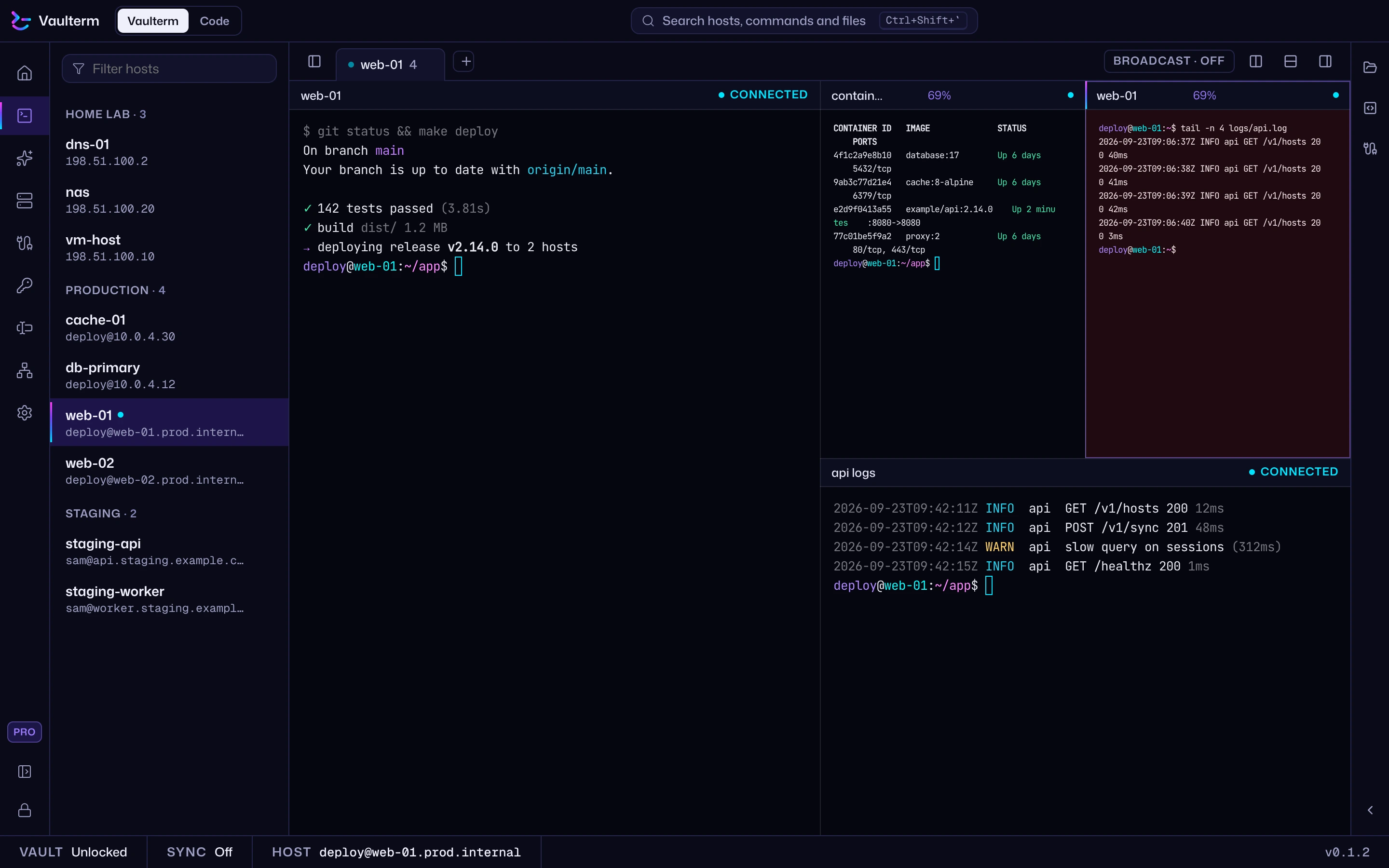
The workspace is where your terminals live: tabs along the top, each tab split into as many panes as you like, every pane its own SSH session or local shell. Open it with Workspace in the left rail.
Open a tab
Section titled “Open a tab”Press Ctrl+Shift+T (⌘T on a Mac), or the + button (New tab) at the end of the tab bar. The new tab asks Where to connect:
- Type part of a host’s name, address or tag to filter Hosts, or type an address such as
[email protected]:2222to connect without saving. - Recent and Most connected list the servers you use, like the lists on Home (which v2 calls Recent and Most used).
- Connections lists your saved connections, which show their files in the pane.
- Local shell opens a shell on this computer.
Move with ↑ and ↓ and press Enter, or click. Escape gives you a local shell.
If nothing matches, the picker says “No hosts match. Type user@host:port to connect anyway.”
Split a pane
Section titled “Split a pane”Split the focused pane with:
| Split | Windows and Linux | Mac |
|---|---|---|
| Split right | Ctrl+Shift+E |
⌘D |
| Split down | Ctrl+Shift+O |
⇧⌘D |
The new pane asks where to connect, the same way a new tab does. Split as often as you like: web-01 on the left, web-02 top right and db-primary bottom right is three splits’ work.
To change the sizes, drag the line between two panes. With the line focused (Tab to it), the arrow keys move it in steps of 5%. A pane never gets smaller than 15% of the space it shares.
Move between panes and tabs
Section titled “Move between panes and tabs”| Move | Windows and Linux | Mac |
|---|---|---|
| Pane to the left, right, above, below | Alt+← Alt+→ Alt+↑ Alt+↓ |
⌥⌘← ⌥⌘→ ⌥⌘↑ ⌥⌘↓ |
| Next tab | Ctrl+Tab |
⌃Tab |
| Previous tab | Ctrl+Shift+Tab |
⌃⇧Tab |
| Move this tab left | Ctrl+Shift+PageUp |
⇧⌘← |
| Move this tab right | Ctrl+Shift+PageDown |
⇧⌘→ |
Clicking a pane focuses it too. The focused pane is the one your typing, snippets and Files tray act on.
Arrange by dragging
Section titled “Arrange by dragging”Drag a tab, a pane (by its header) or a host (from the host list, Home or the Hosts page) and drop it:
| Drop on | With a tab | With a pane | With a host |
|---|---|---|---|
| The edge of a pane | Merge here: the tab’s panes join that tab | Split left, Split right, Split up or Split down | Connects in a new split on that side |
| The middle of a pane | Merge here | Swap the two panes | Replace that pane with the host |
| The tab bar | Move here | New tab | New tab |
| An empty workspace | New tab |
A label follows the pointer and says what the drop will do. The edge bands are about a fifth of the pane’s width or height, so aiming near an edge splits and anywhere else in the middle swaps or replaces.
Replacing a pane that’s still connected asks first: “web-01 is still running. Replacing it ends that session.”
The same moves from menus
Section titled “The same moves from menus”Every drag has a menu equivalent. Right-click to get them.
A tab:
| Item | What it does |
|---|---|
| New tab | Opens a new tab. |
| Rename | Renames the tab’s focused pane, which names the tab. |
| Duplicate | Opens a copy of the tab: the same panes connected to the same hosts, as new sessions. |
| Save layout… | Saves this tab as a layout. |
| Merge into… | Moves every pane in this tab into another tab, listed as “Tab 2: db-primary”. |
| Close tab, Close other tabs | Closes tabs and ends their sessions. |
Inside a terminal:
| Item | What it does |
|---|---|
| Split right, Split down | Splits this pane. |
| Browse files | Opens the Files tray for this server. SSH panes only, once connected. |
| Upload files… | Picks files on this computer and uploads them to the folder open in the Files tray. SSH panes only, once connected. |
| Send break | Sends a break on a serial connection. See Consoles. |
| Text size | Bigger, Smaller or The app’s size for this pane only. Keys are in Keyboard shortcuts. |
| Rename pane | Names the pane. |
| Move to new tab | Takes the pane out into a tab of its own. |
| Move to… | Moves the pane into another tab, beside its focused pane. |
| Close pane | Closes the pane and ends its session. |
A pane’s header (shown when a tab has more than one pane): Rename, Swap with… (another pane in the tab), Move to new tab and Close pane.
The empty part of the tab bar: New tab, Open layout… and Save layout….
Panes keep their sessions
Section titled “Panes keep their sessions”Moving a pane never reconnects it. Drag db-primary from one tab into another, swap it with redis, merge two tabs, take it back out into a tab of its own: the same session keeps running, with its scrollback, the program running in it and anything half-typed.
Name a pane
Section titled “Name a pane”Press Ctrl+Shift+R (⇧⌘R on a Mac), double-click the pane’s name in its header, or use Rename pane. Type a name such as api logs and press Enter. Escape cancels.
A named pane keeps its name when it moves. Clear the name to go back to the host’s name.
See each pane’s state
Section titled “See each pane’s state”With smart panes on, each pane’s header and tab also name the program running in it (Claude Code, vim, npm run dev) and whether it’s working, idle or waiting for you. The dot below is the connection itself.
A dot beside each pane’s name, and each tab’s name, shows its state:
| State | Meaning |
|---|---|
| Connecting | Opening the connection, or waiting for you to answer a prompt. |
| Connected | Working. |
| Needs your attention | A prompt is waiting in this pane, such as a password or a host key. |
| Reconnecting | The connection dropped and Vaulterm is getting it back. See Connecting and signing in. |
| Ended | The session is over. The pane says why, with a Reconnect button (Restart for a local shell). |
Type into every pane at once
Section titled “Type into every pane at once”Press Ctrl+Shift+B (⇧⌘I on a Mac), or the Broadcast input button in the tab bar. Everything you type goes to every pane in that tab: run sudo apt update on web-01, web-02 and db-primary at once.
- The tab’s status says so (“Connected, broadcasting”), and the panes say “Typing goes to all 3 panes in this tab”.
- Broadcast stops at the tab. Panes in other tabs don’t receive anything.
- Press the same keys again to stop.
Check what you’re typing before pressing Enter: every pane runs it.
Find text in a terminal
Section titled “Find text in a terminal”Press Ctrl+Shift+F (⌘F on a Mac) in a pane. Type in Find; matches in the scrollback are highlighted and the bar shows “2 of 14”, or “No results”.
Entergoes to the next match,Shift+Enterto the previous one. The arrow buttons do the same.Escapecloses the bar and puts you back in the terminal.
Show or hide the side panels
Section titled “Show or hide the side panels”| Panel | Windows and Linux | Mac |
|---|---|---|
| The host list on the left | Ctrl+Shift+H |
⇧⌘H |
| The tray on the right (files, snippets and tunnels) | Ctrl+Shift+I |
⌥⌘I |
The host list has a filter box, Filter hosts in v2 and Filter in v1 · Original. Click a host to connect in a new tab, or the split button beside it to open it in a split. Right-click for Connect, Connect in split right, Connect in split down, Open in this pane when a pane is waiting to be connected, Open in Code…, Edit host, Copy address. Drag a host from it onto a pane to split or replace.
Close panes and tabs
Section titled “Close panes and tabs”- Close pane:
Ctrl+Shift+W(⌘Won a Mac), the × in the pane’s header, or the menus. - Close tab: the × on the tab, or its menu.
- Closing the last pane of a tab closes the tab.
If the pane is still running, Vaulterm asks first (“Close web-01? It’s still running. Closing the pane ends its session.”), with Cancel focused. Closing a tab with several live sessions asks once for all of them, as does Close other tabs.
Drop hosts, groups and files onto panes
Section titled “Drop hosts, groups and files onto panes”Beyond the drags above:
- A host on an empty pane, one still asking where to connect, opens there without splitting.
- A group dropped anywhere in the workspace asks how to open its hosts: As tabs (one tab each), as a grid in this tab (or a new one), or Choose… to tick only some of them first. A grid is as even as possible: 4 hosts make 2 × 2, 5 make a row of 3 over a row of 2. Subgroups’ hosts are included.
- A file from your computer dropped on a local shell types its path, quoted so spaces are safe. Dropped on an SSH pane, it offers to upload it to the folder open in the Files tray (or your home folder), or Paste path.
Each has a menu equivalent: a host’s menu opens it in the focused pane, and a group’s menu has Open all….
Good to know
Section titled “Good to know”- The terminals aren’t redrawn when you move them, so nothing flickers and nothing is lost.
- A local shell’s Reconnect is called Restart shell: it starts a fresh shell.
- When Vaulterm quits with tabs open, it offers to bring them back next time. See Home.
- All the shortcuts on this page can be changed. See Keyboard shortcuts.